AI-ASSISTED WORKFLOW
A collection of creative production work which utilized artificial intelligence tools to solve a problem, operate more efficiently, develop structure and guidelines, or aid in the ideation process.
This site: Figma library to shipped code
Background / Problem / Thought process
I planned this portfolio in Figma, turned the decisions into a published library of foundations and components, and designed every page from it. Then I built the site by hand with Claude as a coding partner, working page by page from the Figma frames and holding every section to the same spacing, type and caption rules.

Background / Problem / Thought process
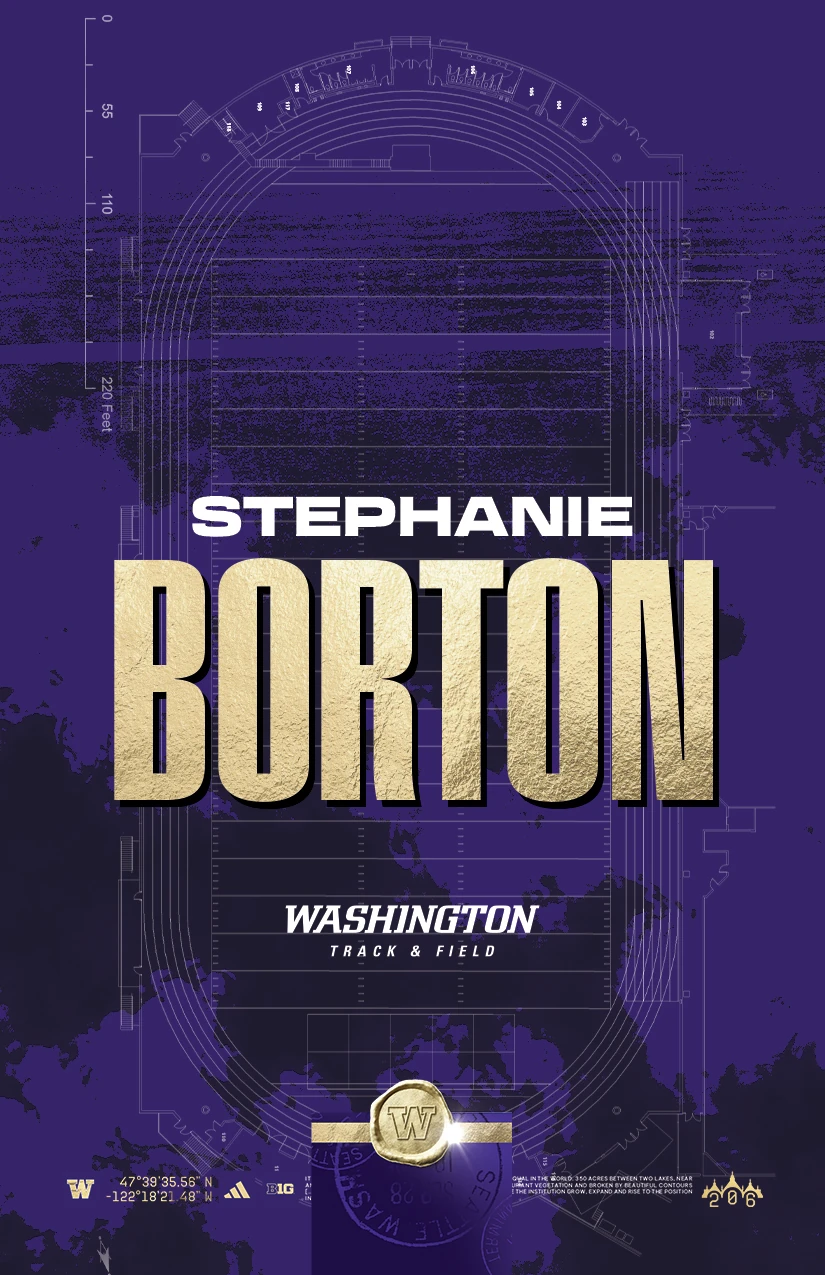
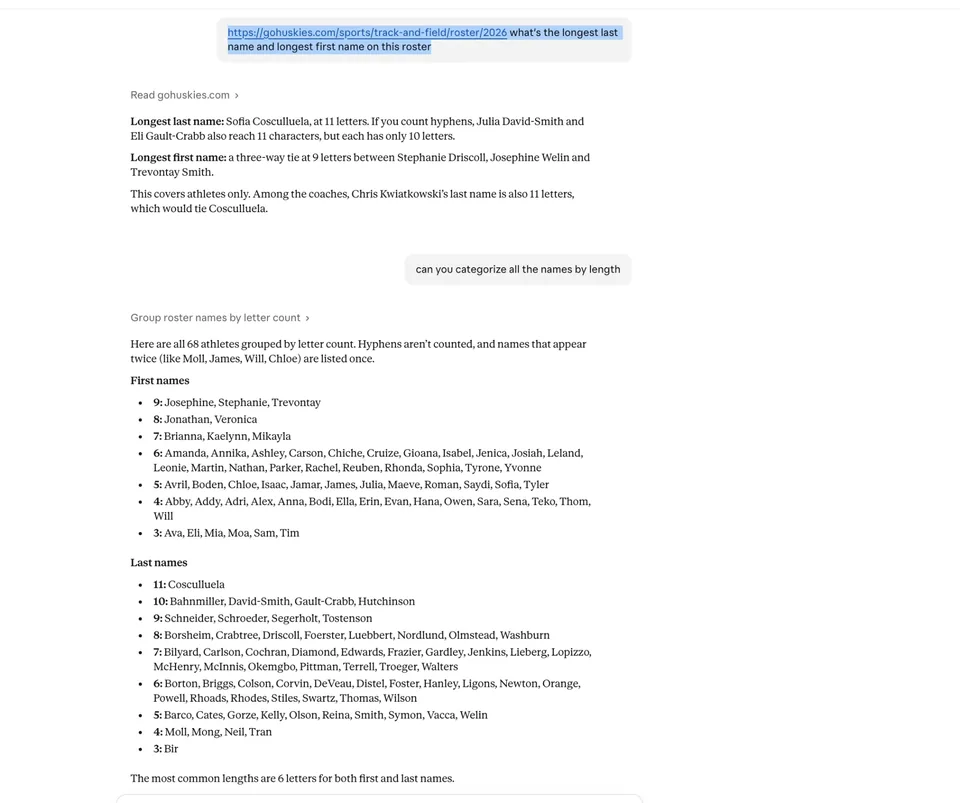
Every athlete on Washington Track & Field gets a name tag for their bag, and the 2026 roster had 68 of them, with last names running from three letters to eleven. Setting that many by hand means picking a type width, resizing, re-spacing and re-centering 68 times. So I designed one tag in Photoshop and wrote the rules down instead. First I had Claude sort the roster by name length. Then I gave Claude Code the rules: which Pressio width and size each last-name length gets, a 22px gap between the first and last name, the names centered on the canvas, and the tertiary mark centered between the last name and the wax seal. Working through Claude’s Adobe connector, it built all 68 PSDs plus a master file, placed each one on its own page of an InDesign file, and exported a packaged, print-ready PDF with bleed and crop marks. I proofed the PDF and sent it to print.
Prompt • Claude Code + Photoshop
I’m looking to bulk create PSDs of name tags for our track and field team.
Step 1: Locate all the first and last names on the roster listed here: gohuskies.com/sports/track-and-field/roster/2026
Step 2: Go into the reference file PSD saved in the UW work folder and follow these rules:
1. First name should always be written in Transducer Extended Black 13.27pt (it’s labeled “FIRSTNAME” in the layers panel in the reference file PSD).
2. Last name font type and size will vary as follows: for names with 11, 10 or 9 characters use Pressio Black X-Compressed 77.28pt. For names with 8 or 7 characters use Pressio Black Compressed 67.13pt. For names with 6 characters use Pressio Black Compressed 78.92pt. For names with 5 characters use Pressio Black Condensed 67.13pt. For names with 4 characters use Pressio Black Condensed 75pt. For names with 3 characters use Pressio No. 55 Black 75pt. (Stop and ask if you have trouble accessing or are unsure which fonts to use. They should all be installed in my Font Book on Mac and in Adobe Fonts.)
3. After typing each name, ensure the vertical gap between the actual edge of the first name and the actual edge of the last name is 22px.
4. After typing both names and ensuring the 22px gap in step 3, group the “FIRSTNAME” and “LASTNAME” elements together and vertically align them to the center of the canvas.
5. Check that the layer labeled “TERT MARK” is positioned in the vertical center between the actual bottom edge of each last name and the top edge of the layer labeled “Wax Seal.”
6. Finally, export and save each as its own PSD labeled by the athlete’s name, and save one master file with every name in one PSD.
Prompt • Claude Code + InDesign
Next, take all the PSDs and place each one on a different page in the “TF-NameTag-File” INDD. The file has one blank page: place the first PSD, duplicate the page, then place the second one on the second page, and so on. Then export a packaged InDesign folder including the PDF with bleed settings and all printer’s/crop marks. Let me know if you have any questions.

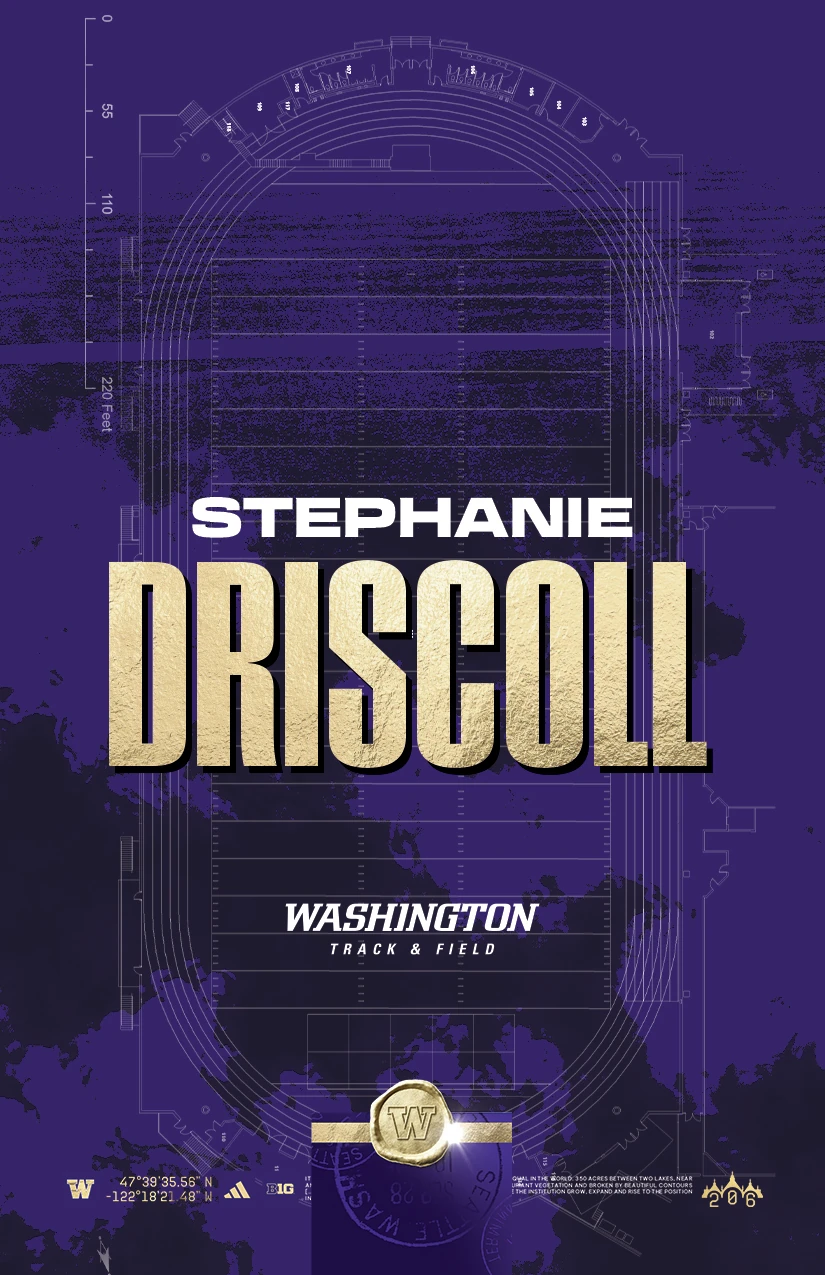
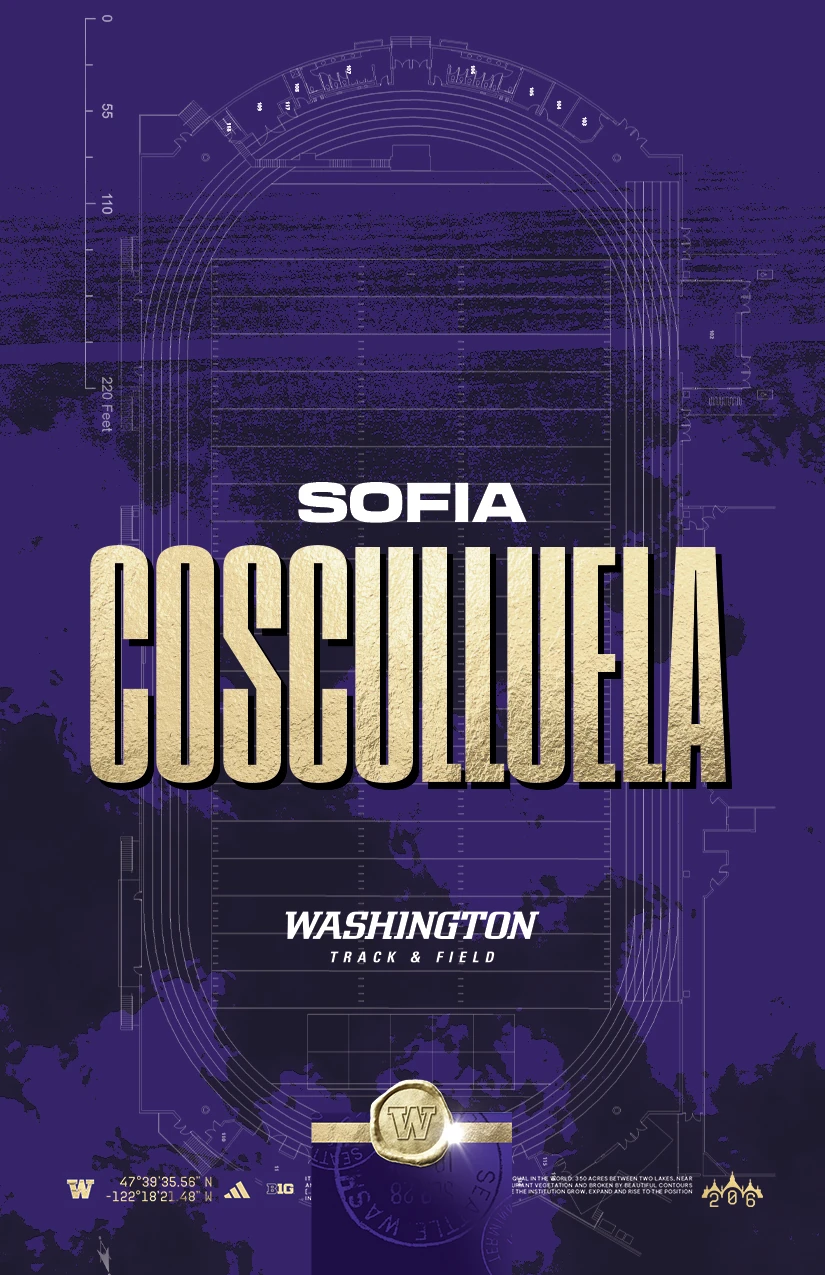
Side note: the background
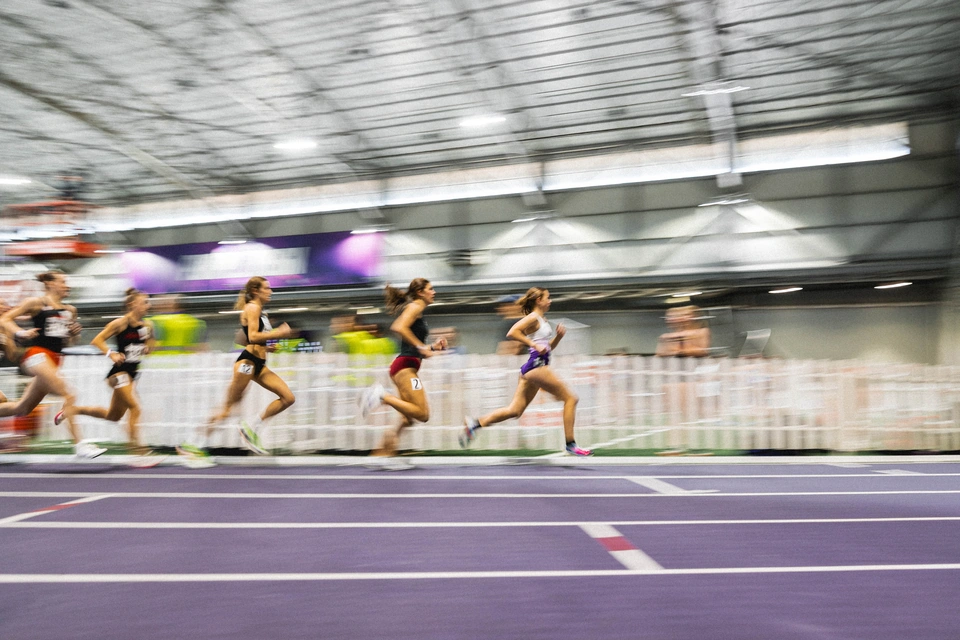
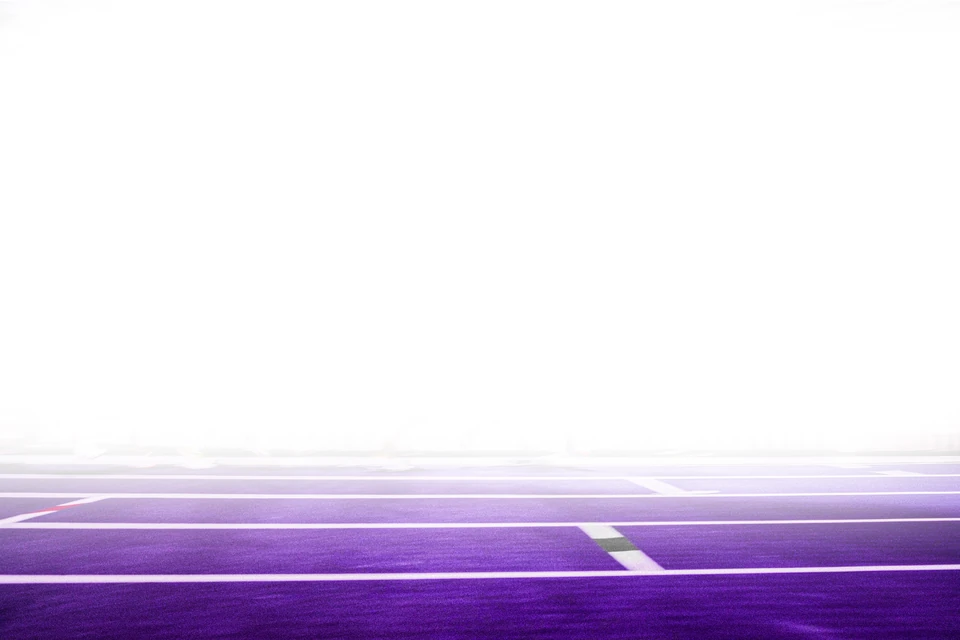
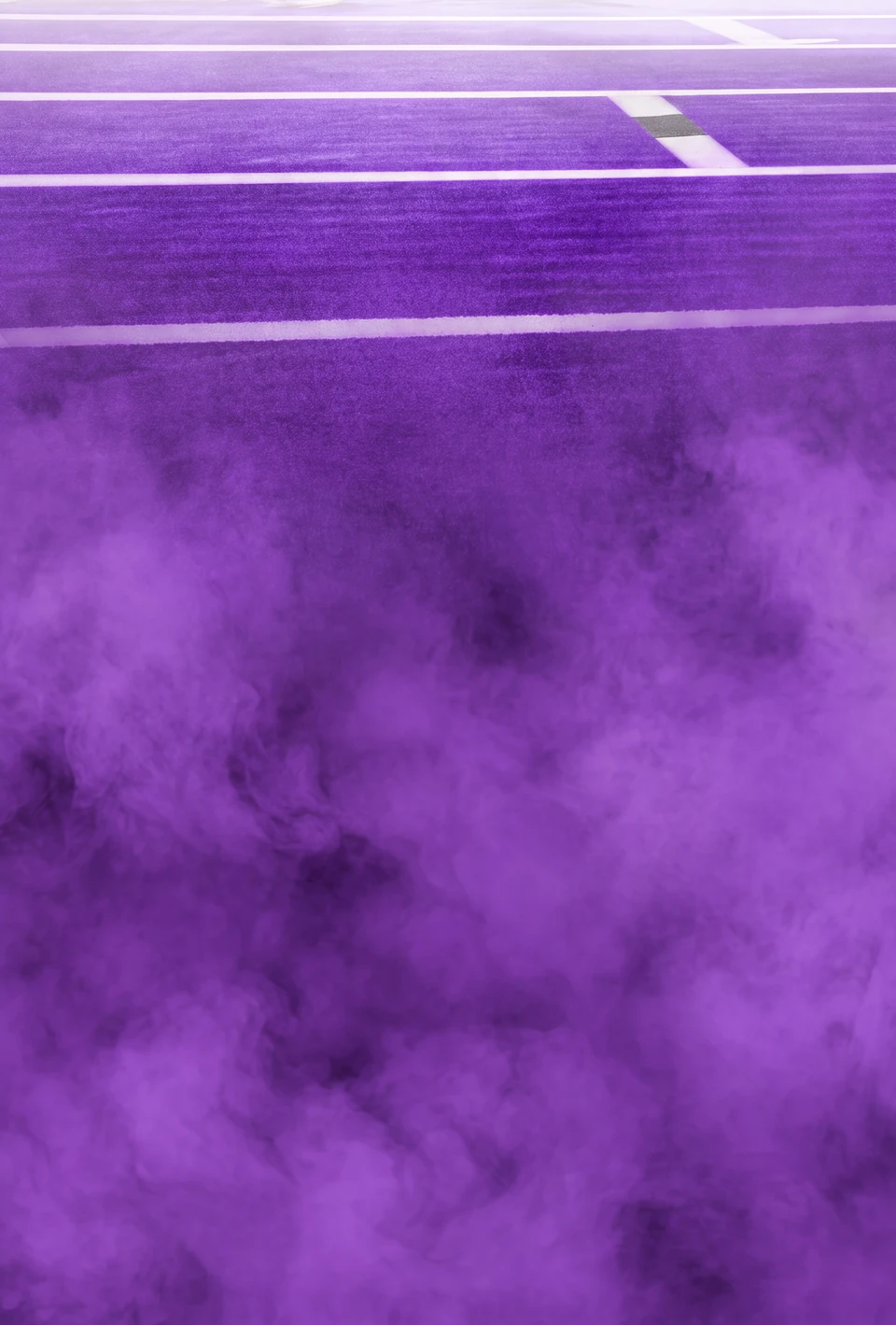
The tag’s background started as a photo of our indoor track. I masked and edited it in Camera Raw and Photoshop into a purple track fading to white, then used that as the reference image in Nano Banana Pro to generate the track disappearing into smoke. A black and white threshold version of the generated image became the background of every tag.
Washington Softball “Purple Out” game day graphic
Background / Problem / Thought process
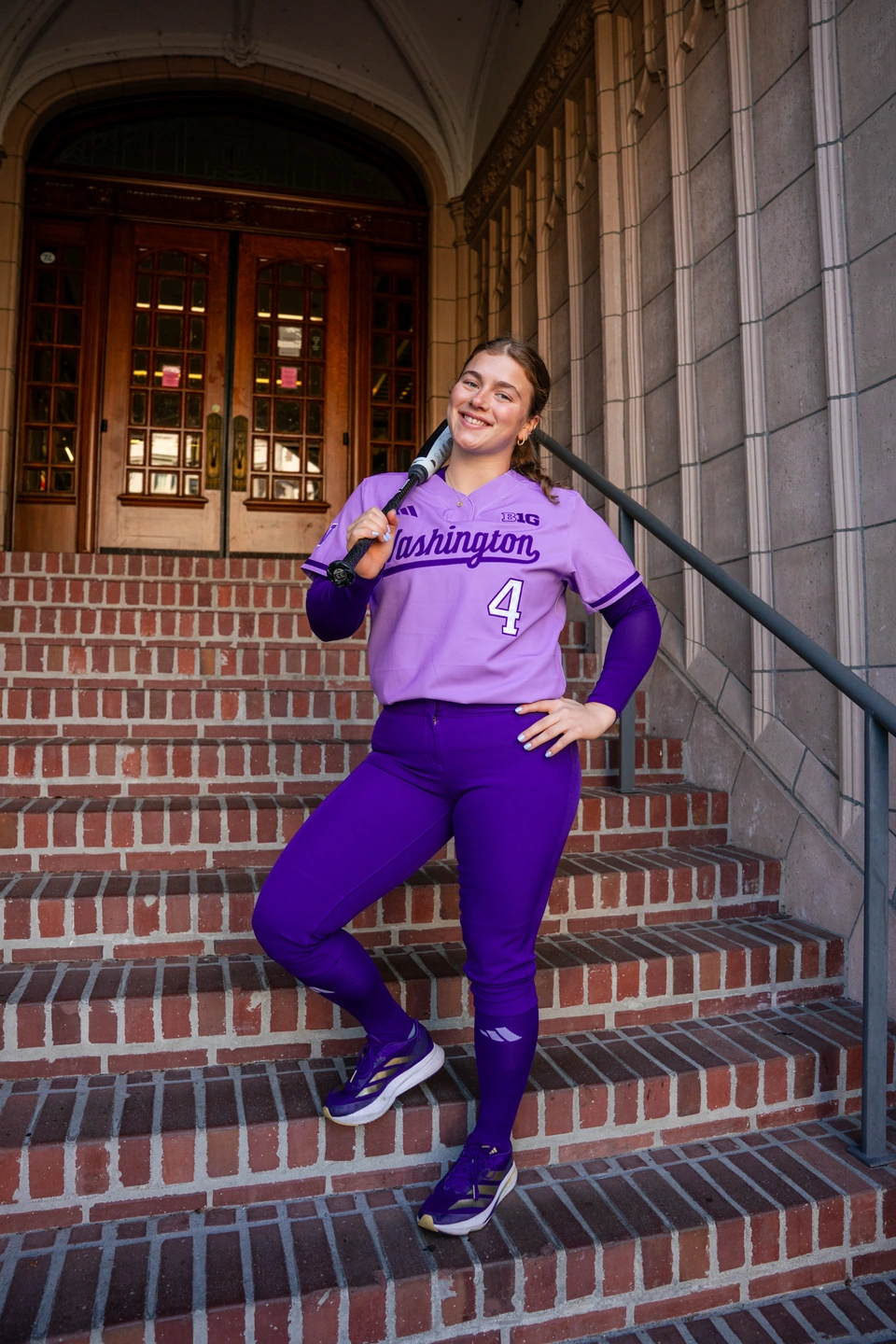
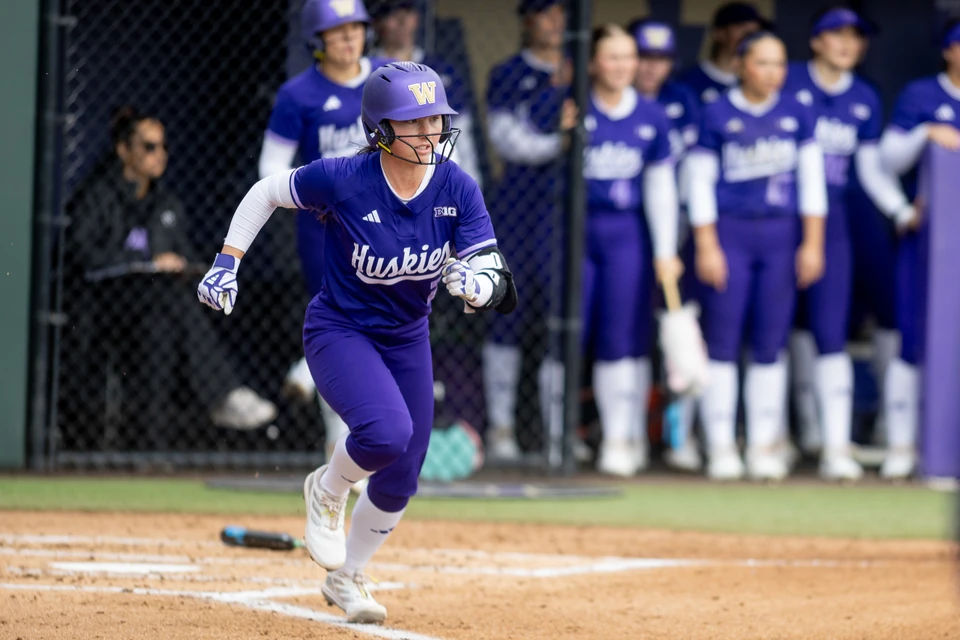
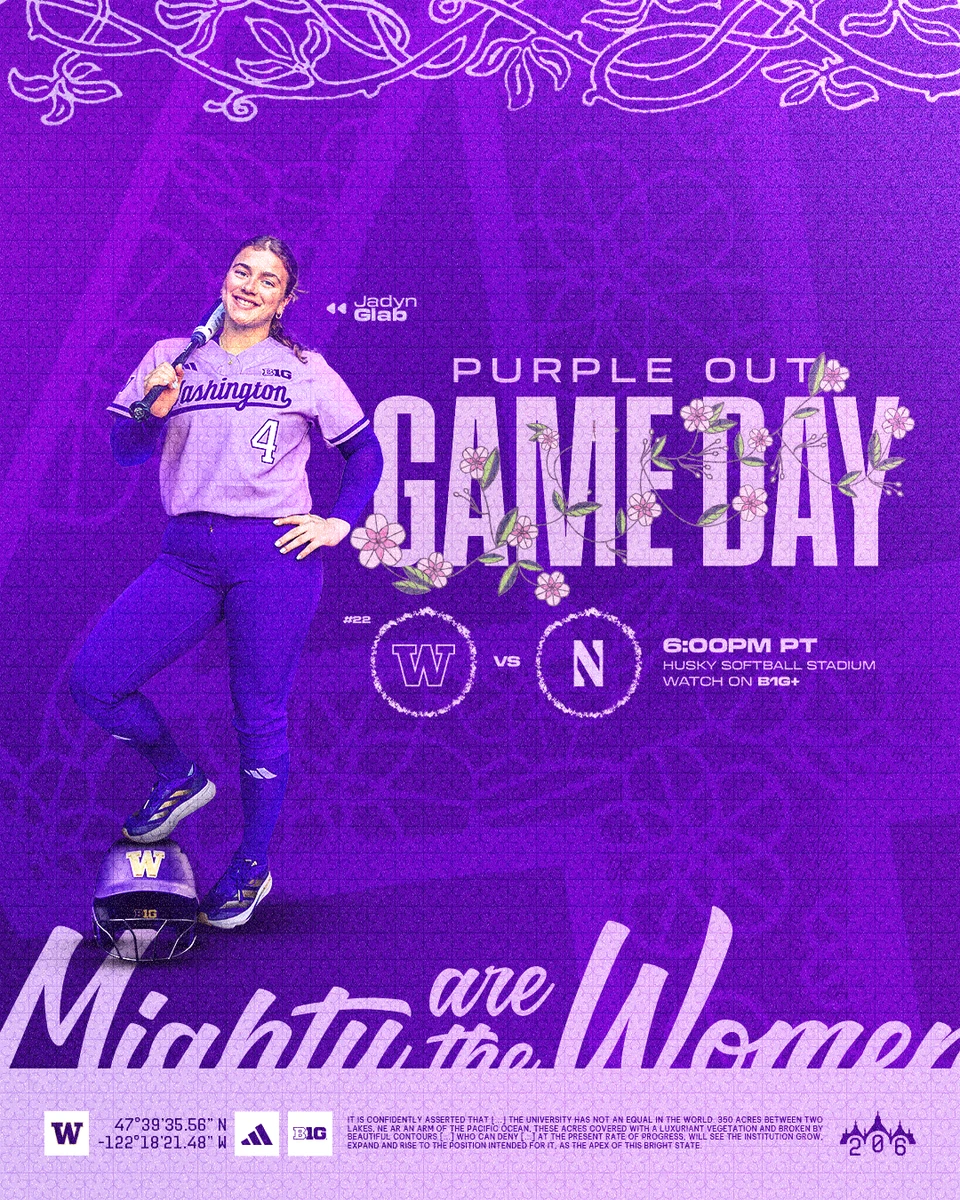
For the “Purple Out” game day graphic during Washington Softball’s 2025 season, the uniform reveal photoshoot was shot on University of Washington’s campus on a brick staircase. However, I wanted to bring the feature athlete, junior catcher Jadyn Glab, into a strictly purple and lavender color space. This was the best full-body photo of the athlete, but pulling the full cutout away from the brick staircase meant I had to make her foot positioning seem natural and intentional in the final graphic. After cycling through a few options of props and softball-related gear she could naturally appear to be standing on in my head, I settled on a helmet (I felt like it made the most sense as she was holding a bat in the original photo). This was a quick turnaround piece I created the night before our “Purple Out” themed home opener and I was coming up empty on finding photography of our gear. So, I utilized reference images of Washington softball players in helmets, uploaded them to Nano Banana Pro’s image generator and prompted and generated a Washington softball helmet shot in studio lighting facing straight on, grounded on the floor. After cutting out and placing the dimensional “Block W” logo on the generated photo of the softball helmet, I was able to place it underneath Glab’s foot and seamlessly integrate it into the final piece. See the initial photo, reference images, prompt, and final graphic below!
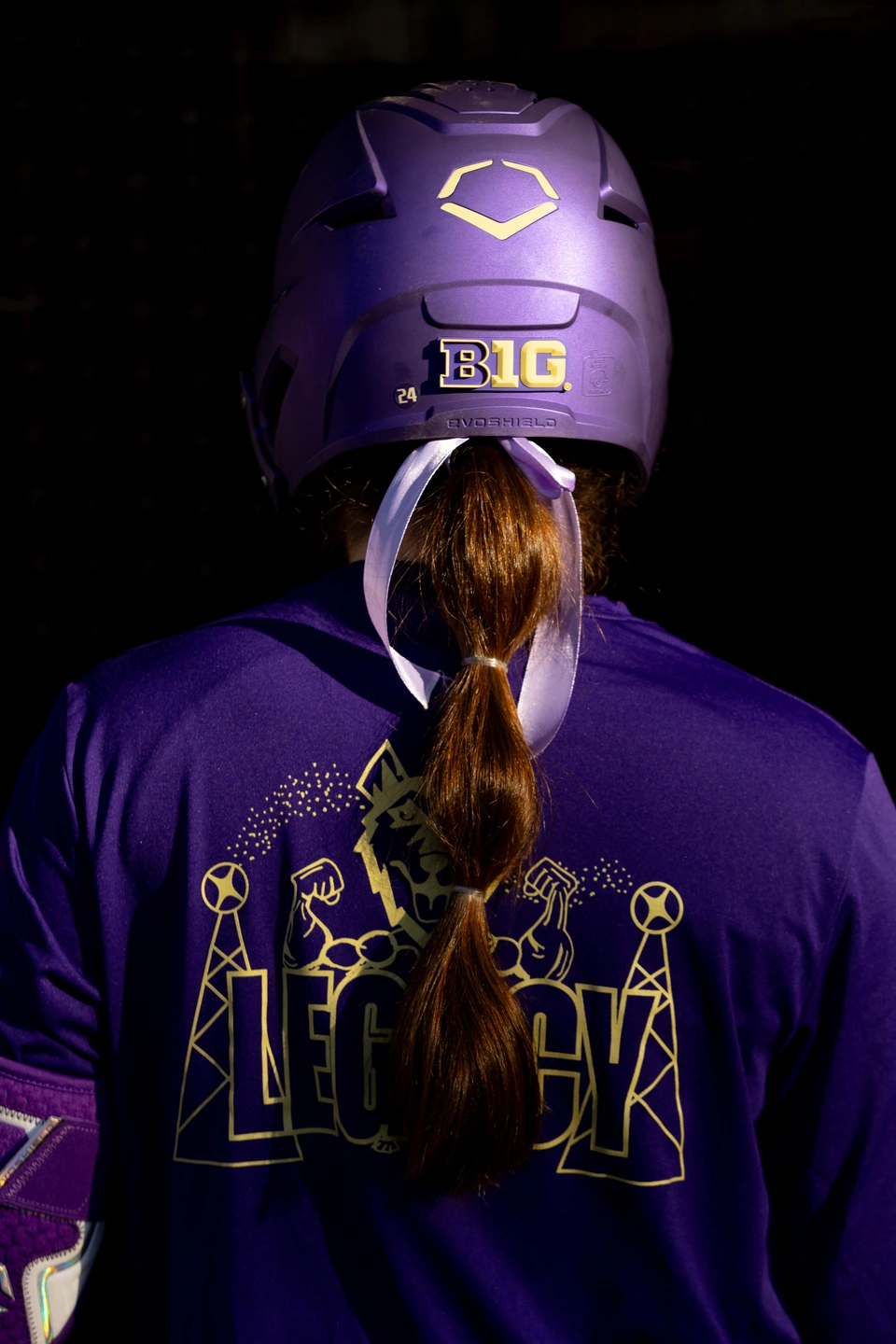
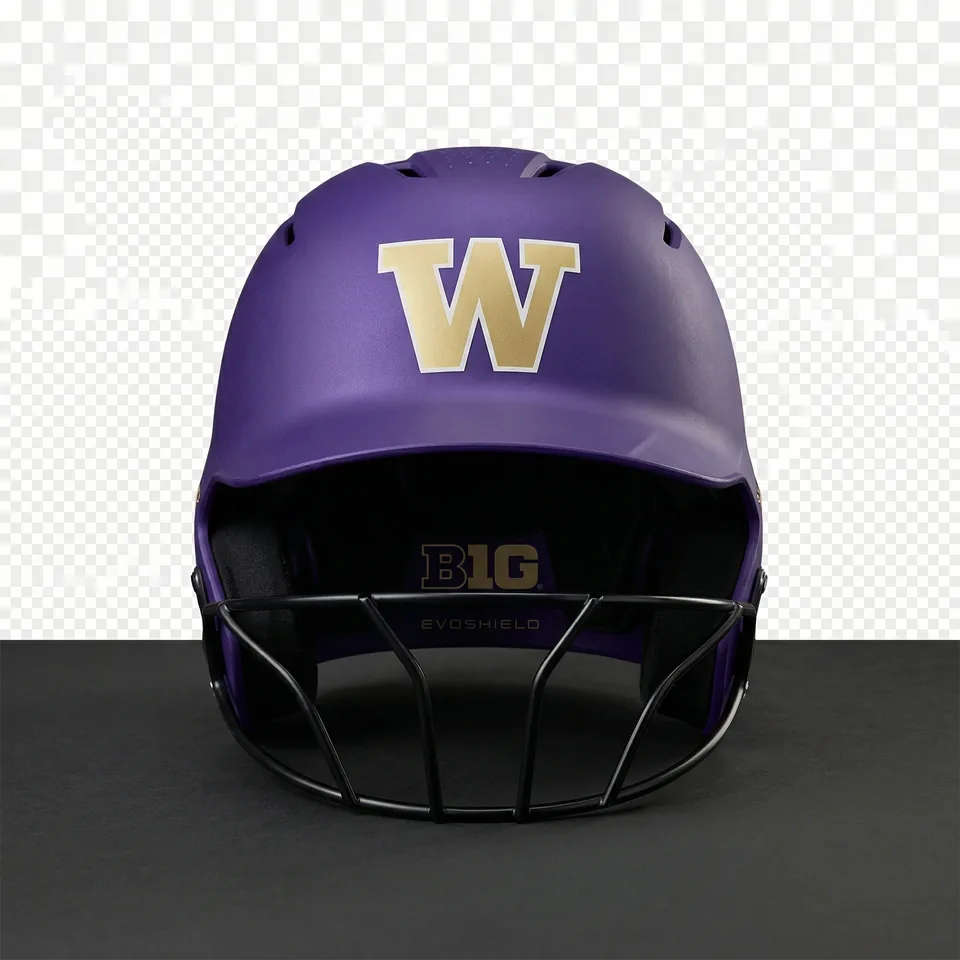
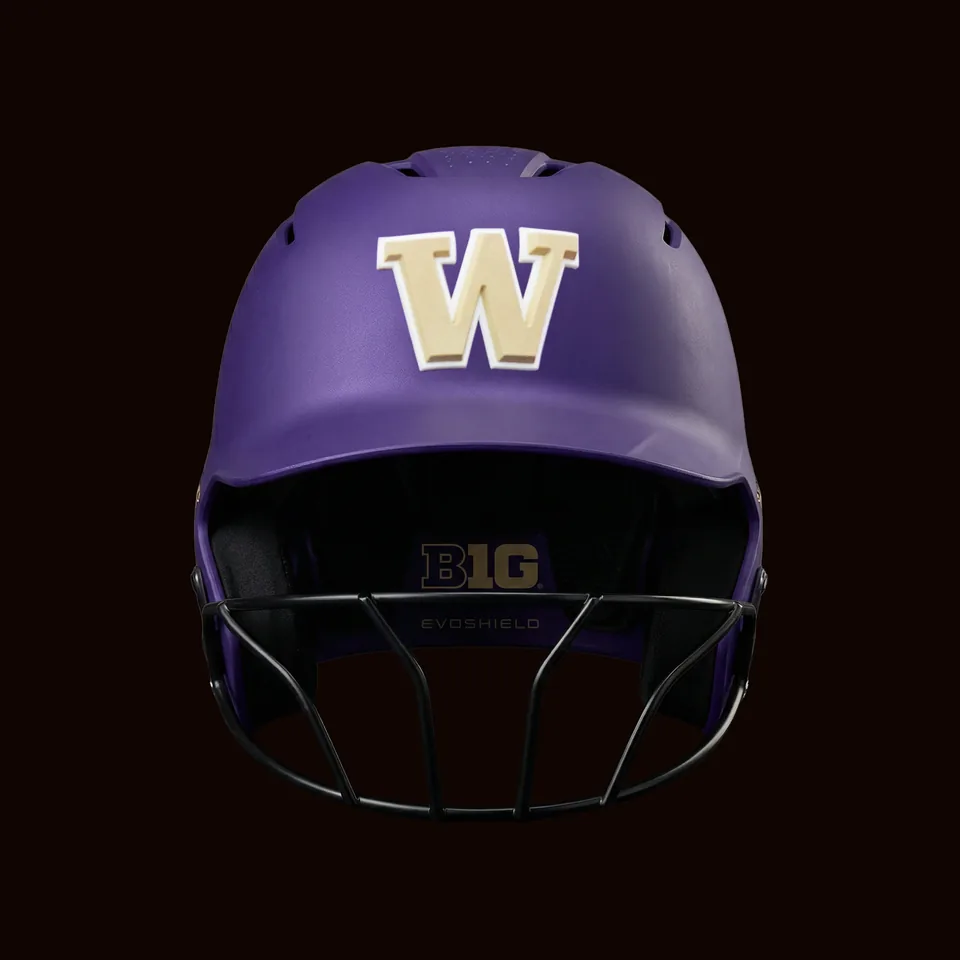
Prompt • Nano Banana Pro
Using the attached images as references of a University of Washington softball helmet, create a straight-on, forward-facing photo of a UW softball helmet as if it was shot in studio lighting, sitting on the ground facing forward.
Dawgs Under The Stars — “Dawgs Drive In”
Background / Problem / Thought process
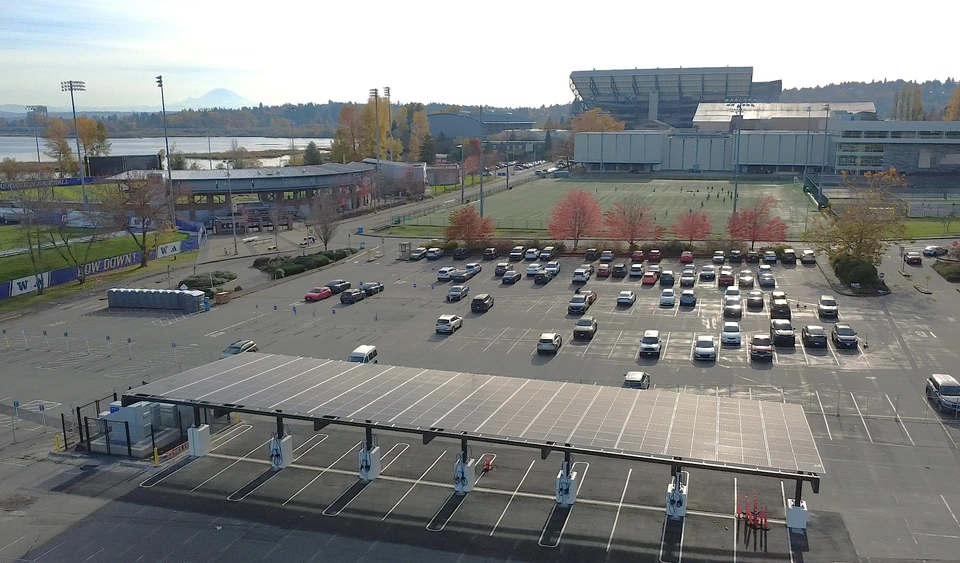
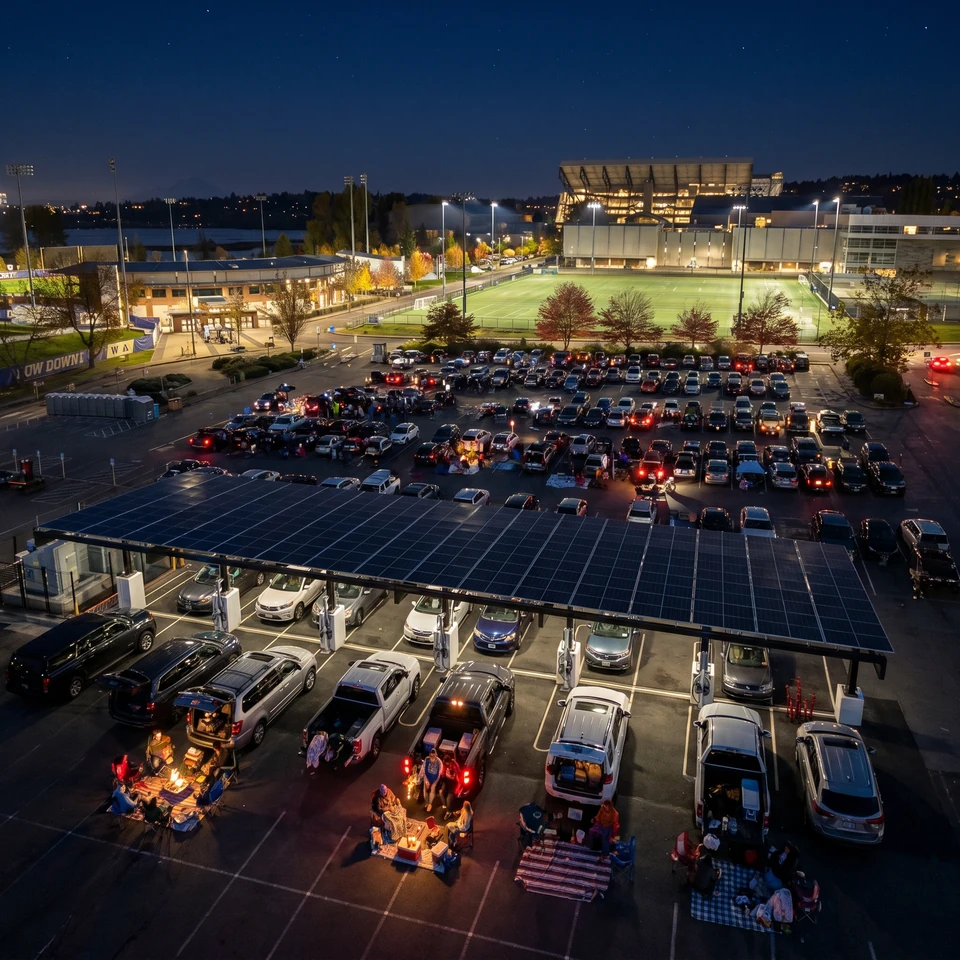
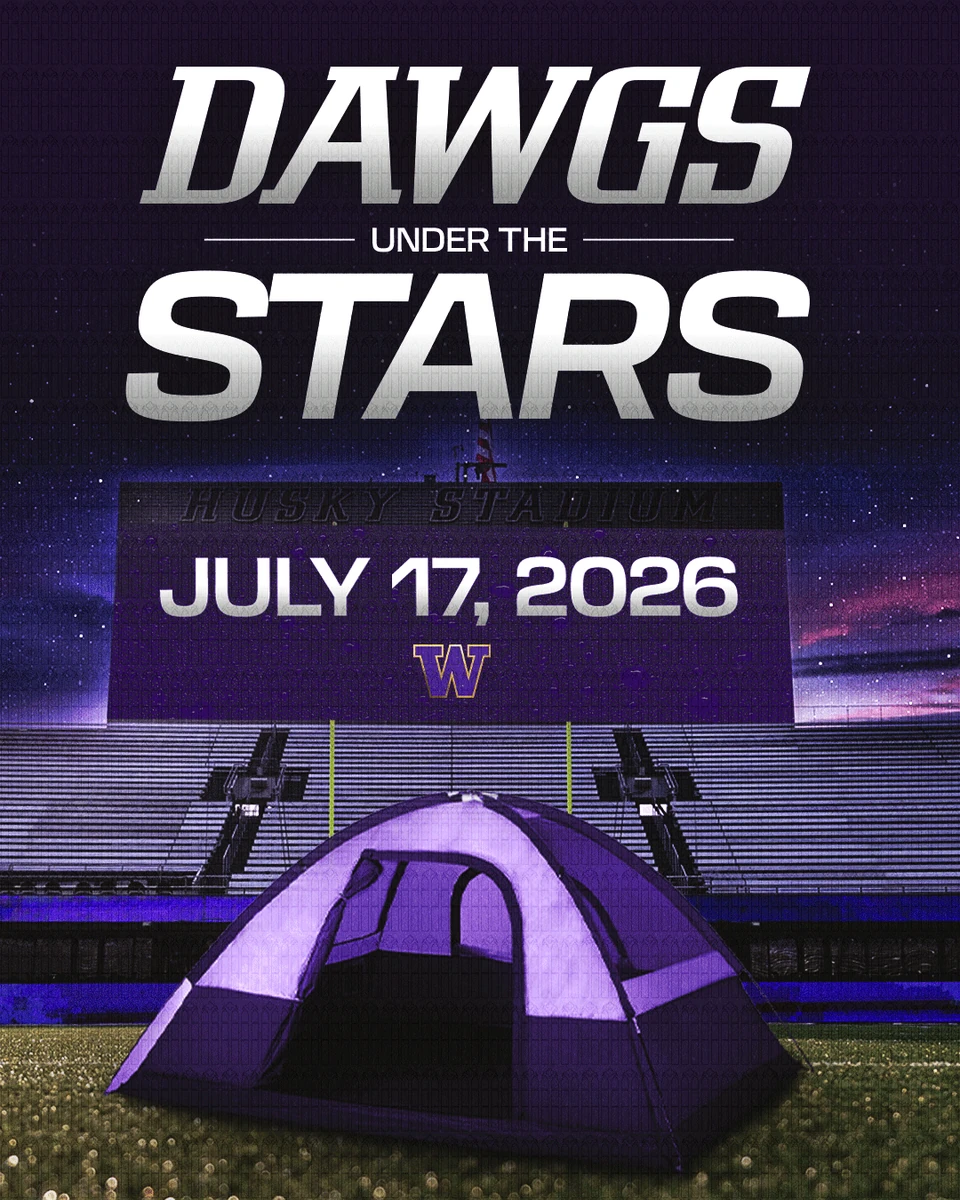
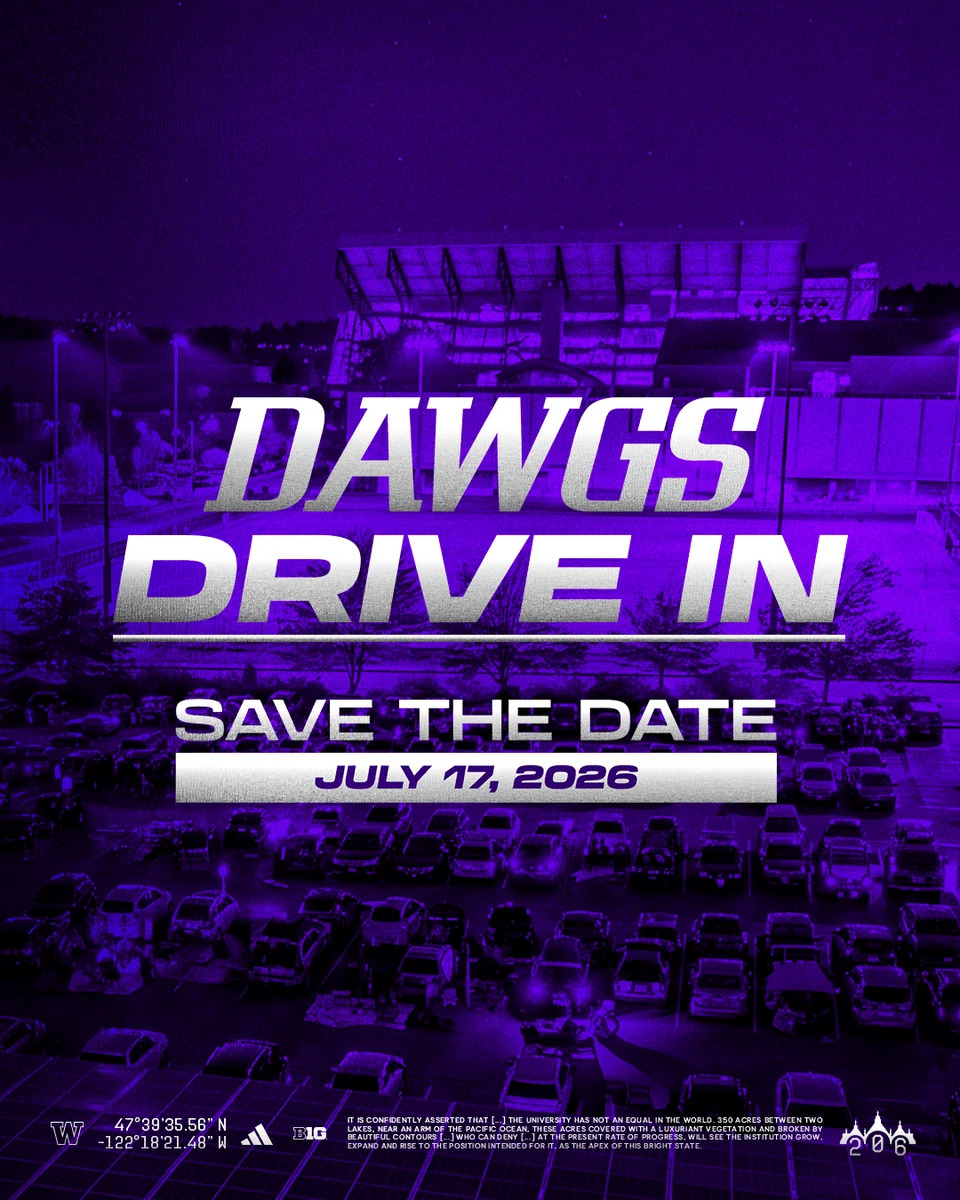
“Dawgs Under The Stars” is an annual occurrence every summer where Washington football season ticket holders and their friends and families spend a night camping out on the field in Husky Stadium watching a movie on the videoboard screen. Typically promo graphics have leaned into photos of Husky Stadium at night including the videoboard. However, for the 2026 edition, “Dawgs Under The Stars” had to pivot at the last second because of construction on the football field. It was rebranded to “Dawgs Drive In” and held in a nearby parking lot down from Husky Stadium. As a result, instead of being an overnight camping experience, it changed into a drive-in movie theater style event. The imagery we had of the location was extremely limited and didn’t communicate a unique experience; it was as boring as any photo of a parking lot. So, I used a prompt and Nano Banana Pro to transform an empty parking lot into a night scene with families and friends enjoying food and time together in and around their parked cars.
Prompt • Nano Banana Pro
Create a night scene using the photo of this parking lot that makes it look like a drive-in movie theater. Do not display the screen; just have the cars with their trunks open with people, as if they’re all gathered in their cars like a drive-in movie theater.
Student section sunglasses giveaway
Background / Problem / Thought process
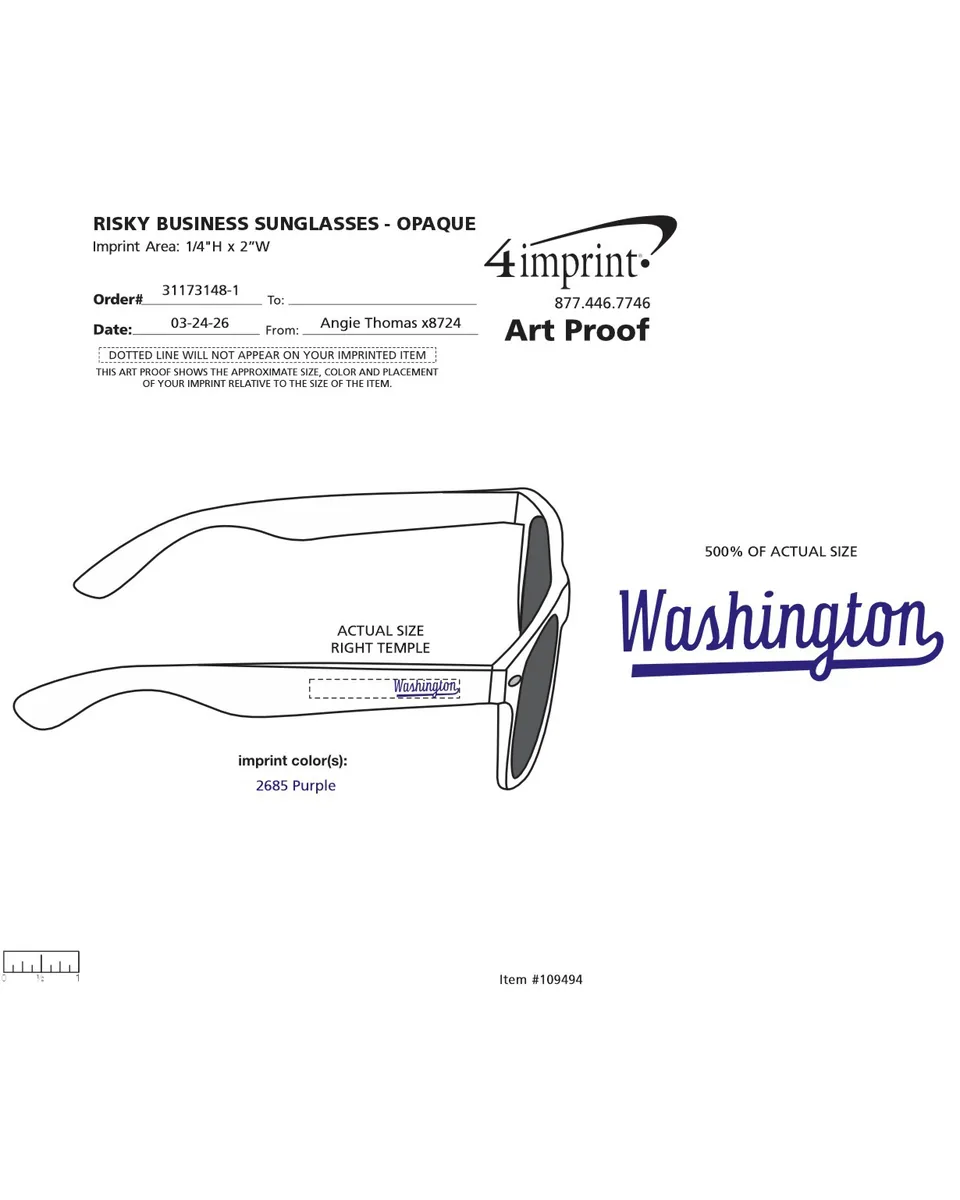
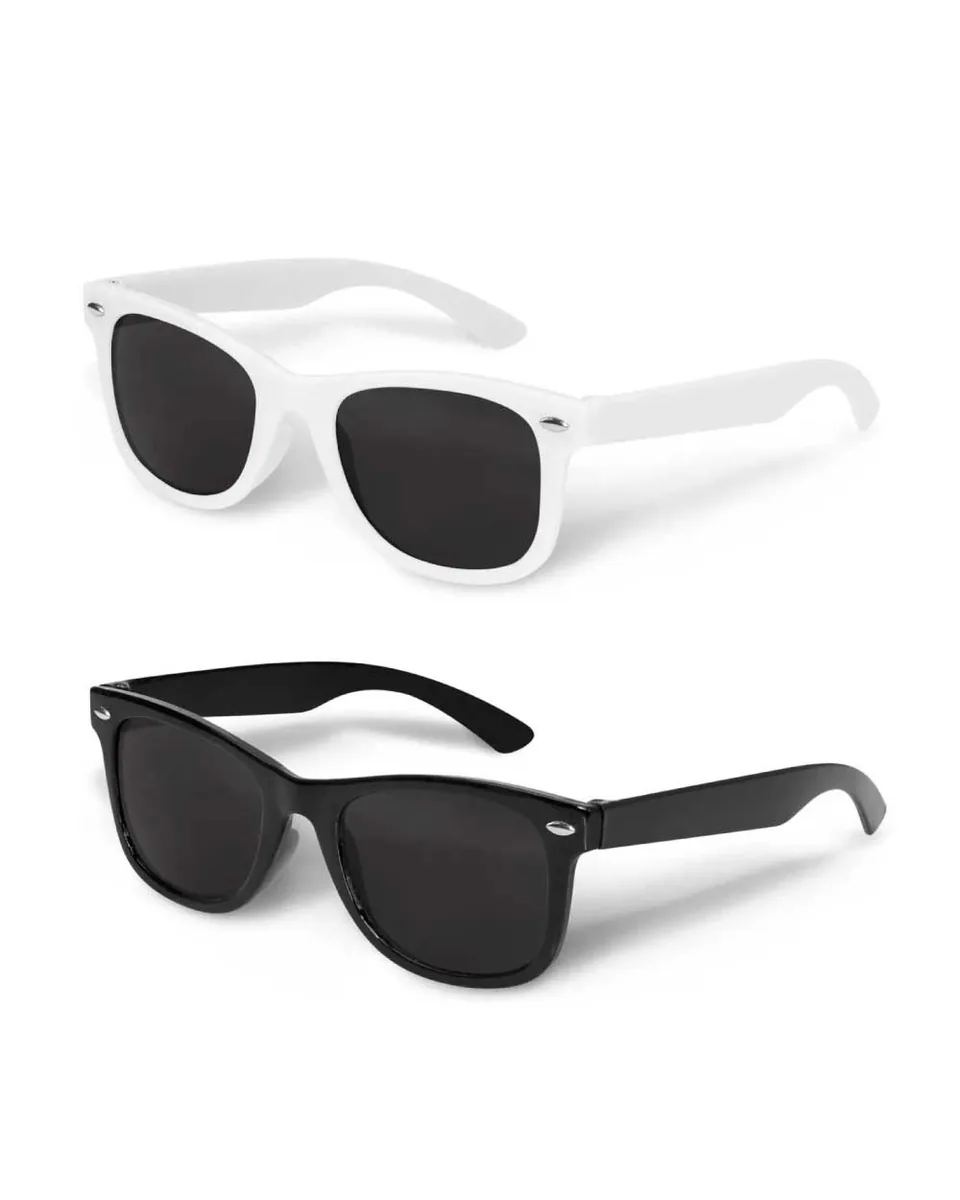
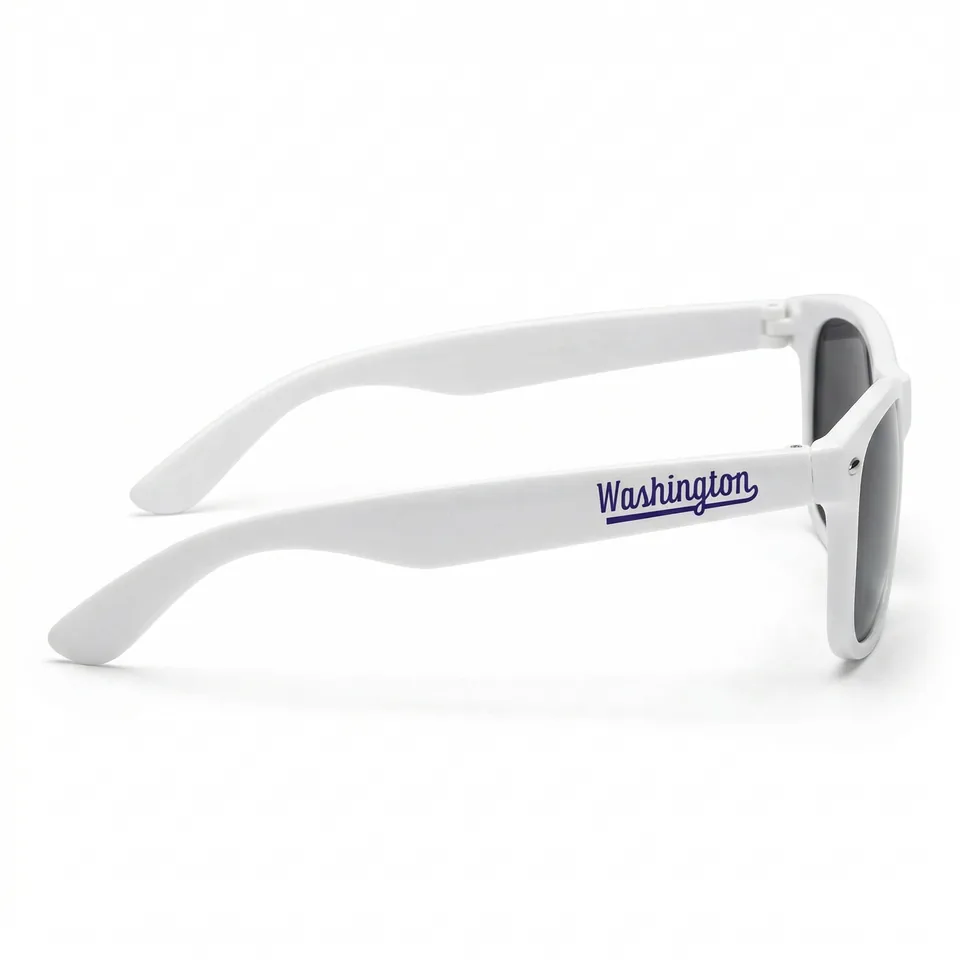
Giveaways are a cornerstone of sports marketing fan promotions. Sometimes getting the giveaway items in hand with enough time to capture content of them and promote the giveaway along with the coinciding sporting event is difficult. There are delays and oftentimes you have to make what you have work. This particular promotion was a sunglasses giveaway for the student section “Dawg Pack” at a home baseball series. I used an illustrative proof of the sunglasses from the vendor along with a photo of the style of sunglasses we were giving away and generated a photo of sunglasses with the script Washington wordmark on the side as if it had been photographed in a studio on a white backdrop. Then, our design team was able to utilize this photo-realistic image to promote the giveaway rather than the small illustrative proof from the printer.
Prompt • Nano Banana Pro
Use the angle of the sunglasses in the first image and the appearance of the sunglasses in the second image to create a photo of a white pair of sunglasses, similar to what you see in the top of the second photo, that has lighting and shadows as if it was shot on a white backdrop with studio lighting.